


Florence Template Setup & Image Update Instructions
Florence is a clean and elegant e-commerce website template designed to showcase products in a visually appealing and organized layout. Ideal for businesses selling items such as flowers, furniture, fashion, housewares, or other retail products, the template features a modern design that highlights product imagery and encourages customer engagement.
One stand out feature is the product galleries with hover effects. In this article, we'll explain how to download, load, and update images in the Florence template using Site Designer. Follow the steps below to ensure images display correctly and the thumbnail navigation continues to function.
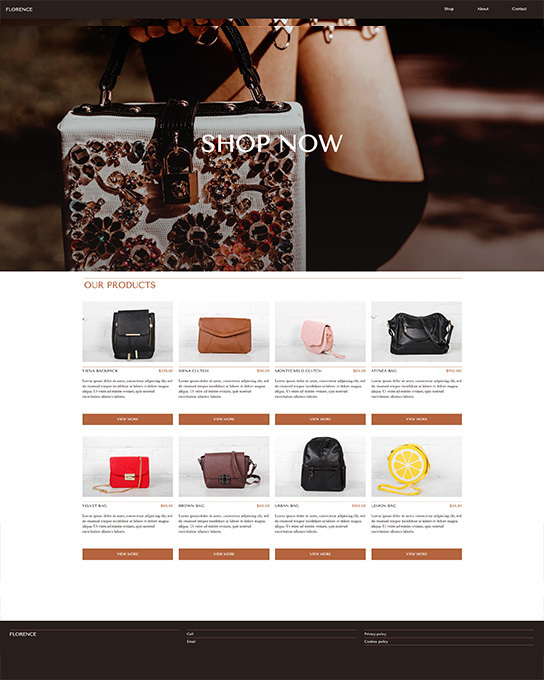
Step 1: Download the Florence Template
Download the Florence template file to your computer from the CoffeeCup Template Shop.
Step 2: Load the Template into Site Designer
- Open Site Designer.
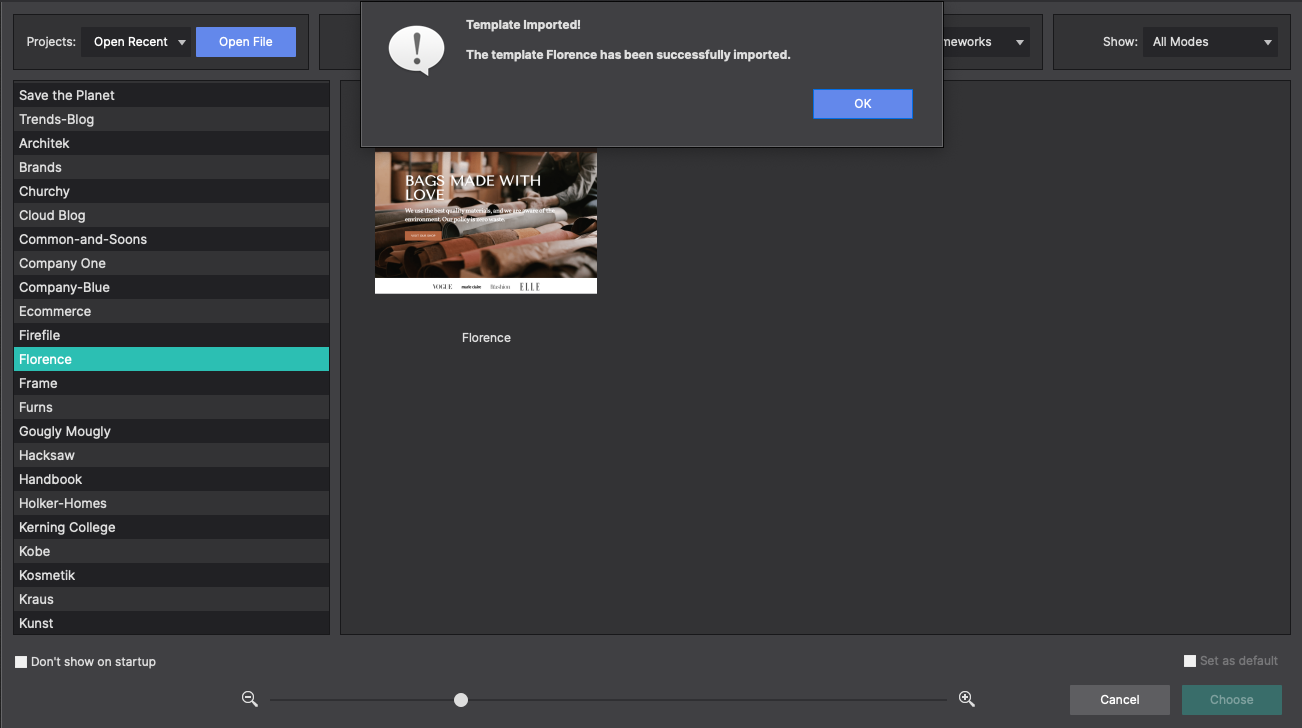
- Double click the downloaded file or open Site Designer and choose File > Import Theme then select the Florence template file you downloaded.
Step 3: Upload Your Images
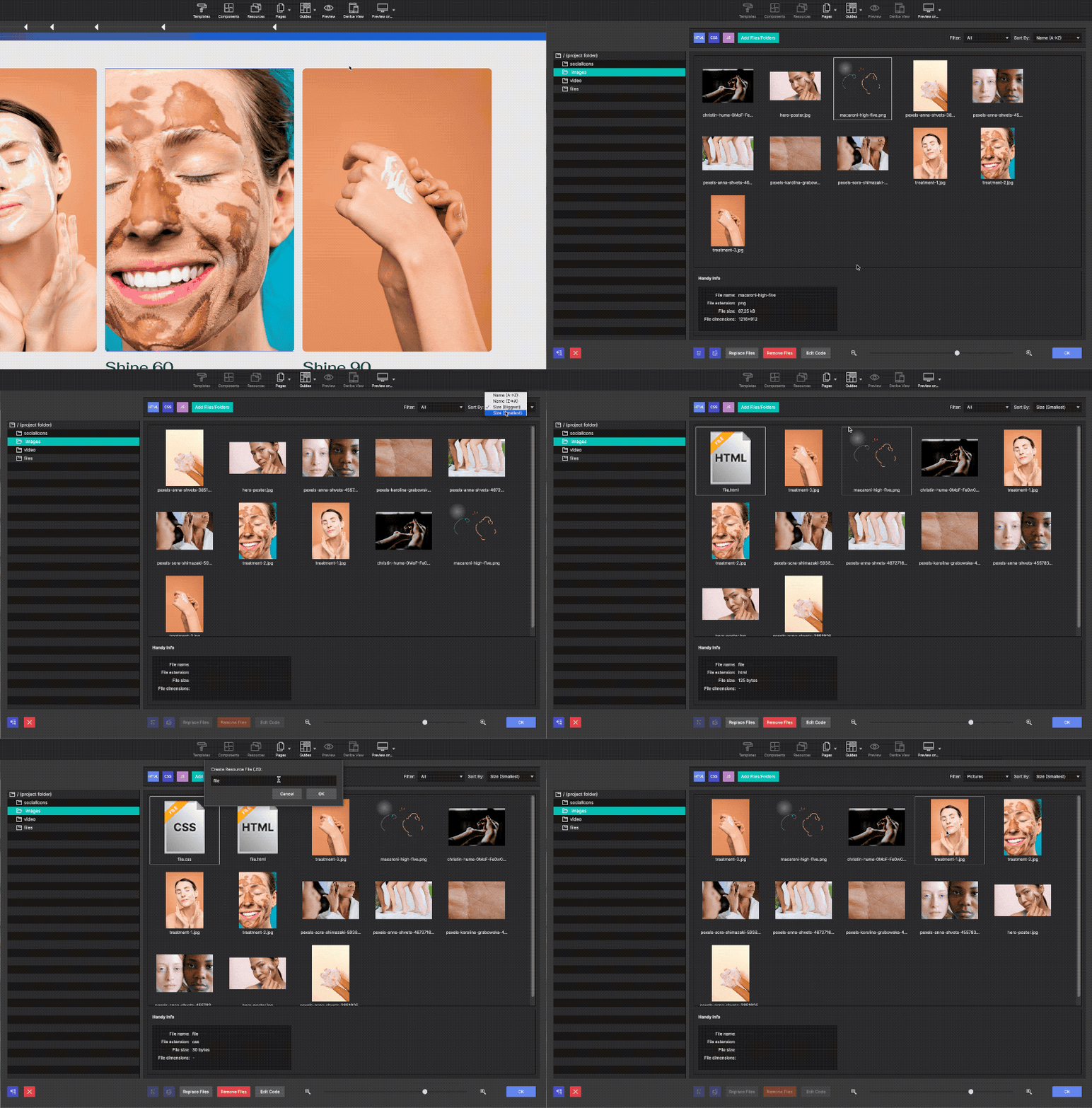
- Within Site Designer, click on Resources in the top toolbar.
- Select Add Images.
- Upload the images you want to use in the template.
Step 4: Copy the Product Page
- Locate the Product Page in the template using the Pages icon in the top toolbar.
- Click on Duplicate to copy the page. From the Page Manager you can change the page name and title to a unique identifier.
- Tip: Leave the original page unchanged so you can reference it if needed.
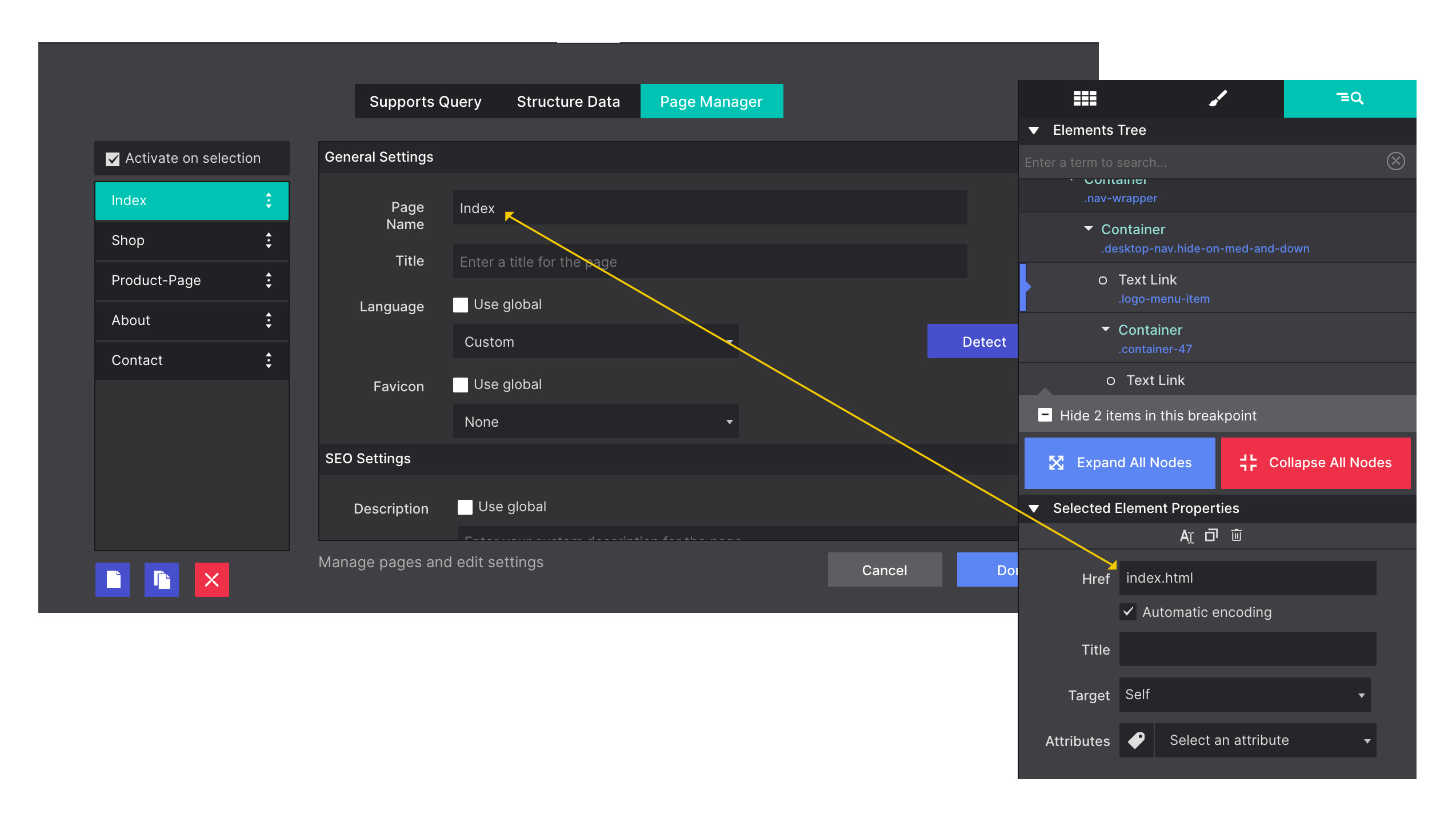
Learn more about the Site Designer Page Manager and watch video demonstrations here.
Step 5: Open the Copied Page
Navigate to the copied version of the product page you created in the previous step. All edits should be made on this page.
Step 6: Make Hidden Image Elements Visible
Some image elements are hidden by default. This is to give you an idea of what the gallery will appear like. The hidden items can be toggled on to view.
- First, Open the Inspector Pane.
- Locate the mySlides elements.
- Click the eye icons next to the elements marked as hidden.
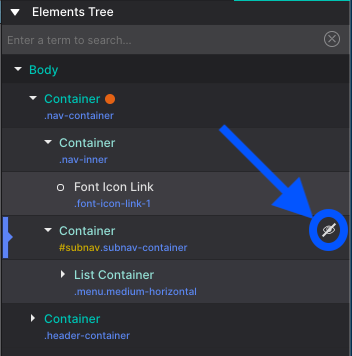
Once the hidden elements are enabled, the image placeholders will appear on the canvas.
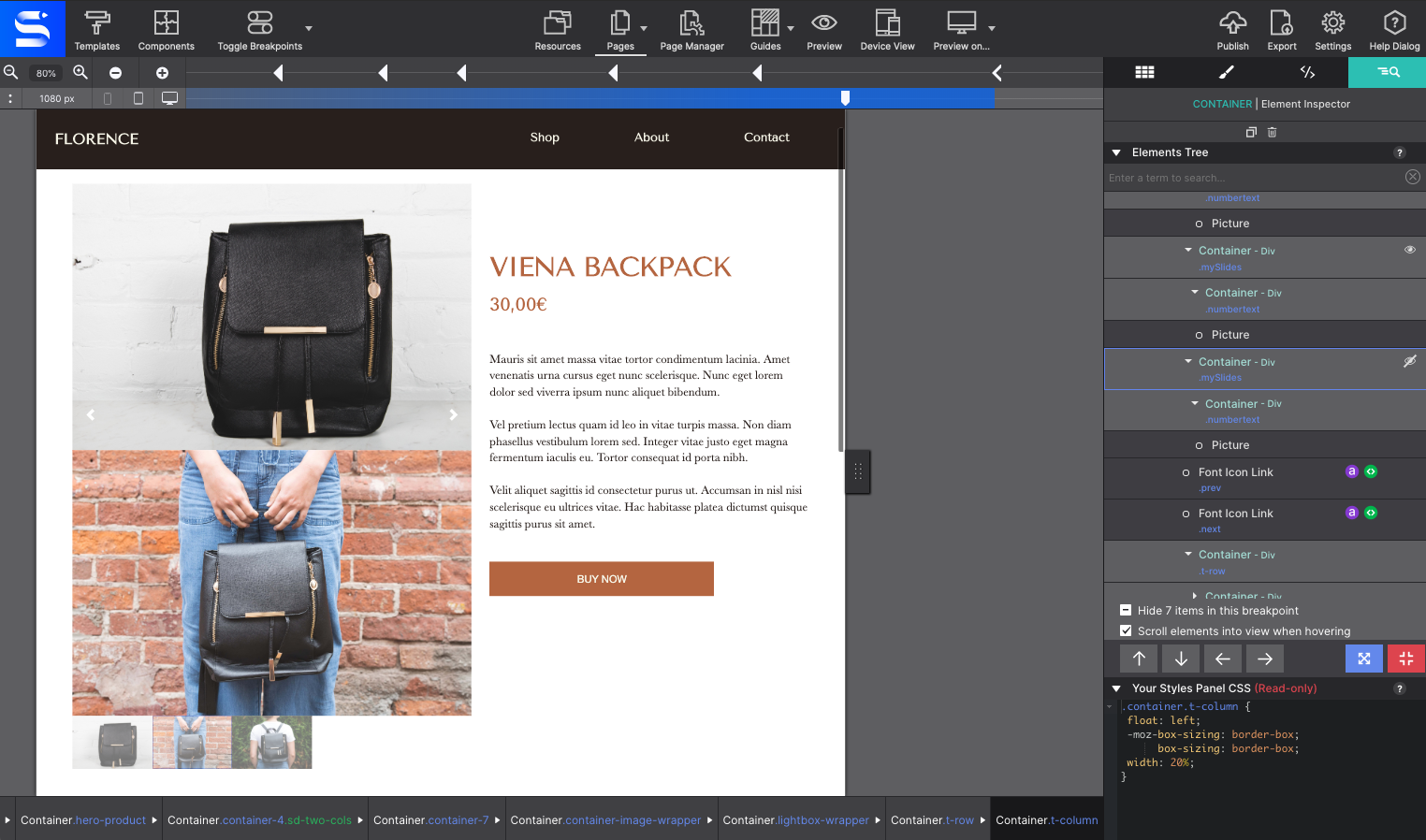
Step 7: Update the Images
Replace the images in the template with your uploaded images from the Element pane. Click the pencil icon to change the resource. Important to note, You'll need to update images in pairs:
- The large display image that is the main gallery focus.
- The corresponding thumbnail image at the bottom to match it.
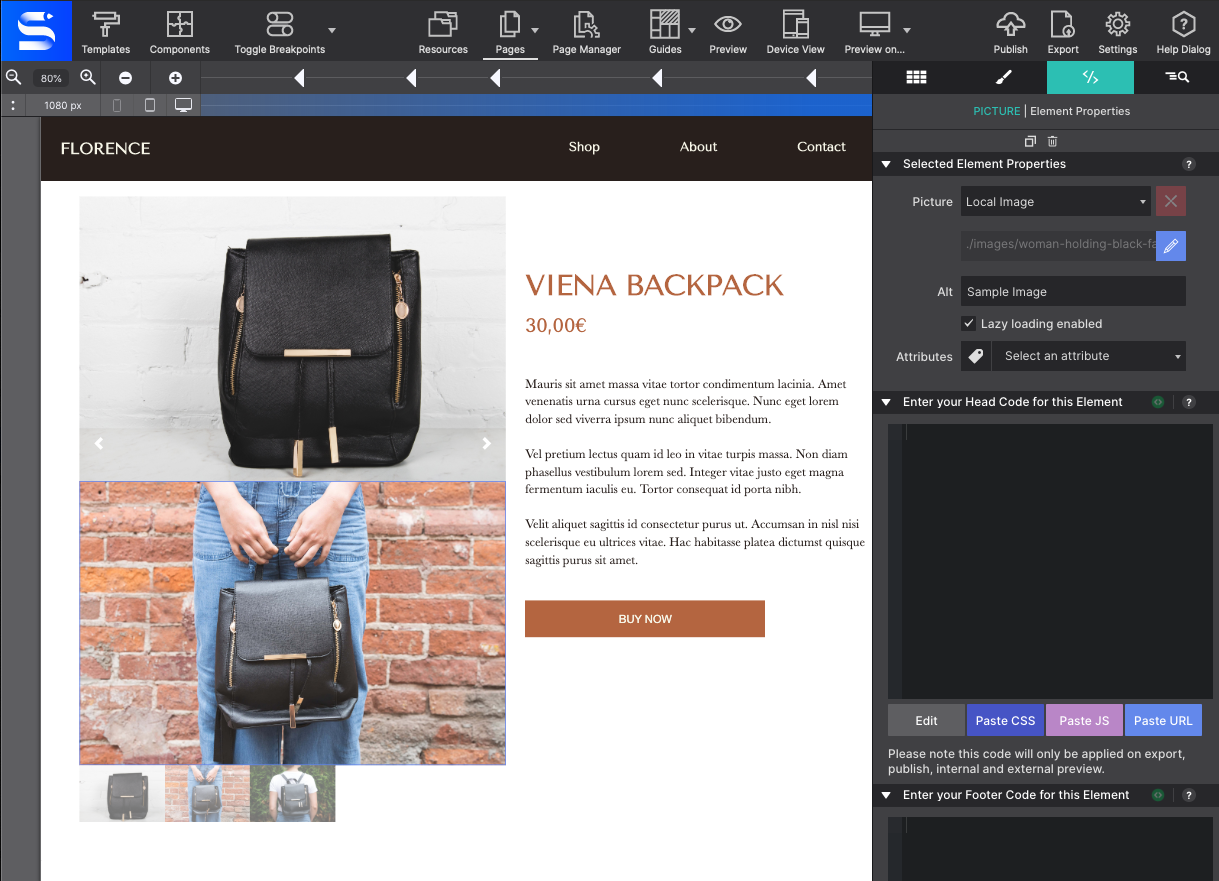
Each large image must match its corresponding thumbnail.
Important: Do Not Remove Click Attributes
On the picture element pages, you will see data-event-onclick attributes highlighted in green. These attributes must remain in place. They are required for the thumbnail click functionality to work properly in the browser. Removing or altering them will prevent the image navigation from working.
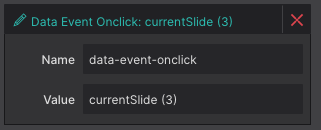
Learn More About Data Attributes here.
Ready to customize your PayPal buttons?
Check out the next tutorial for a step-by-step guide to modifying the buttons. Start taking payments with PayPal today.
Florence Template Setup & Image Update Instructions
Florence is a clean and elegant e-commerce website template designed to showcase products in a visually appealing and organized layout. Ideal for businesses selling items such as flowers, furniture, fashion, housewares, or other retail products, the template features a modern design that highlights product imagery and encourages customer engagement.
One stand out feature is the product galleries with hover effects. In this article, we'll explain how to download, load, and update images in the Florence template using Site Designer. Follow the steps below to ensure images display correctly and the thumbnail navigation continues to function.
Step 1: Download the Florence Template
Download the Florence template file to your computer from the CoffeeCup Template Shop.
Step 2: Load the Template into Site Designer
- Open Site Designer.
- Double click the downloaded file or open Site Designer and choose File > Import Theme then select the Florence template file you downloaded.
Step 3: Upload Your Images
- Within Site Designer, click on Resources in the top toolbar.
- Select Add Images.
- Upload the images you want to use in the template.
Step 4: Copy the Product Page
- Locate the Product Page in the template using the Pages icon in the top toolbar.
- Click on Duplicate to copy the page. From the Page Manager you can change the page name and title to a unique identifier.
- Tip: Leave the original page unchanged so you can reference it if needed.
Learn more about the Site Designer Page Manager and watch video demonstrations here.
Step 5: Open the Copied Page
Navigate to the copied version of the product page you created in the previous step. All edits should be made on this page.
Step 6: Make Hidden Image Elements Visible
Some image elements are hidden by default. This is to give you an idea of what the gallery will appear like. The hidden items can be toggled on to view.
- First, Open the Inspector Pane.
- Locate the mySlides elements.
- Click the eye icons next to the elements marked as hidden.
Once the hidden elements are enabled, the image placeholders will appear on the canvas.
Step 7: Update the Images
Replace the images in the template with your uploaded images from the Element pane. Click the pencil icon to change the resource. Important to note, You'll need to update images in pairs:
- The large display image that is the main gallery focus.
- The corresponding thumbnail image at the bottom to match it.
Each large image must match its corresponding thumbnail.
Important: Do Not Remove Click Attributes
On the picture element pages, you will see data-event-onclick attributes highlighted in green. These attributes must remain in place. They are required for the thumbnail click functionality to work properly in the browser. Removing or altering them will prevent the image navigation from working.
Learn More About Data Attributes here.
Ready to customize your PayPal buttons?
Check out the next tutorial for a step-by-step guide to modifying the buttons. Start taking payments with PayPal today.
