


Web Form Builder comes with a built-in security system if you choose to use it: "I am not a robot" or a reCAPTCHA box. You've seen them on the web before, and likely used a few of these genius little boxes.
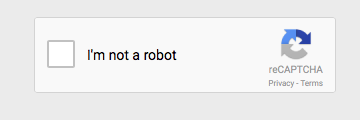
To use a "I am not a robot", go to the Elements Tab > Captcha and choose either Automatic (S-Drive only) or Manual from the Captcha drop-down and then under Type, select from either a Light or Dark theme.
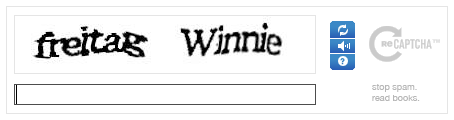
Included at the end of your form, this box displays two words that the submitter must accurately re-type into the input box in order for the form to be submitted. These words are designed to be impossible for automated programs to identify, stopping them from submitting your form. In other words, if you use a reCAPTCHA box, your form can only be submitted by humans!
To use a reCAPTCHA box, go to the Elements Tab > Captcha and choose either Automatic (S-Drive only) or Manual from the Captcha drop-down and then under Type, select from either the White, Clean, Red or Blackglass theme.
Automatic Captcha
All Captcha systems rely on a key of answers to ensure that the image that has been displayed matches up with the answer that is expected. S-Drive has its own set of keys that you can choose to use, but you'll need to be publishing to S-Drive in order to use it. Use this option only if you are publishing to S-Drive or if you use the Automated Form Processing export function.
Generate New Keys!
Public and Private keys generated from v1 cannot be used in v2. You will need to re-generate new keys of you are switching CAPTCHA versions.
Manual Captcha
If you're not using S-Drive's automated form processing, or if you just want to use your own keys, you'll need to use the Manual setting. Go to the Elements Tab > Captcha in Web Form Builder, select Manual from the Captcha drop-down, and two fields will appear that say Public Key and Private Key.
Since you're not using S-Drive's keys, you'll need to provide your own Public and Private keys for the Captcha to work.
Get Your Captcha Keys
Go to the RreCAPTCHA website to get your keys.

Google Gmail Account Required
Yes, it is true. To use reCAPTCHA you need to have a Google account. If you are not signed in you will be asked to choose which account you wish to use to create your reCAPTCHA. If you do not have an account your will need to sign up for one to continue.
Once signed into your Google account you should see a page like this:
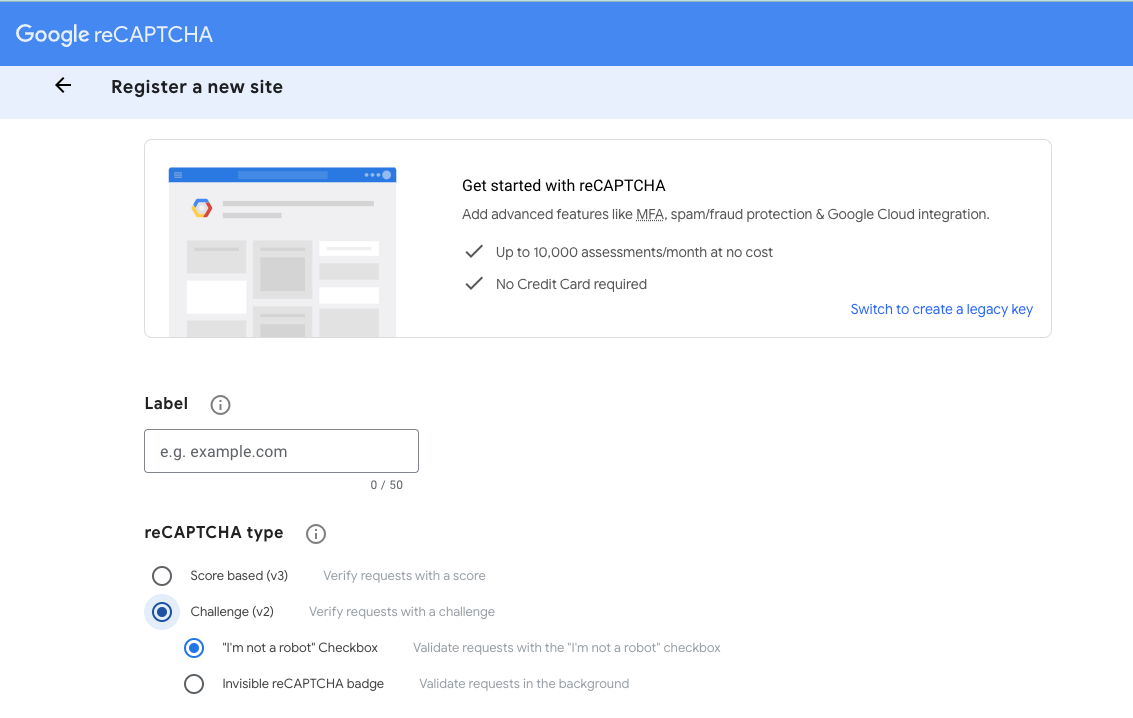
On this page you can create a new reCAPTCHA V2 or review current reCAPTCHA keys. To create a new key enter a description into the form provided and then enter your domains (one per line) into the provided input.
Once complete click the Submit button to gain access to your public and private keys.
The following page will contain your public and private keys that you will need to use in Web Form Builder. (The private key has been partially blurred to protect it, since you're supposed to keep this one a secret for security's sake!)
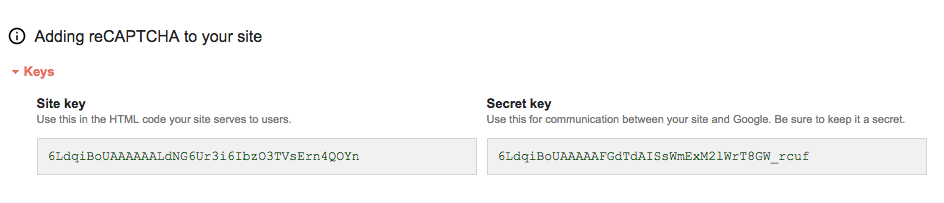
Highlight and copy these two keys one at a time and paste them into the Public Key and Private Key fields.

Your keys are now set up and your Captcha box will work! Please note that these keys will only work on the domain you entered on the reCAPTCHA website. Using this keys for a form on another domain will cause the Captcha because to experience a fatal error.